
A photo app made by one indie developer
Open a little box
of your past
You don’t have to sort your whole camera roll at once. Each day, open a random stretch of it and go one photo at a time: keep what you love, favorite what makes you smile, and free up a little space.
- No account
- No ads
- One free box a day
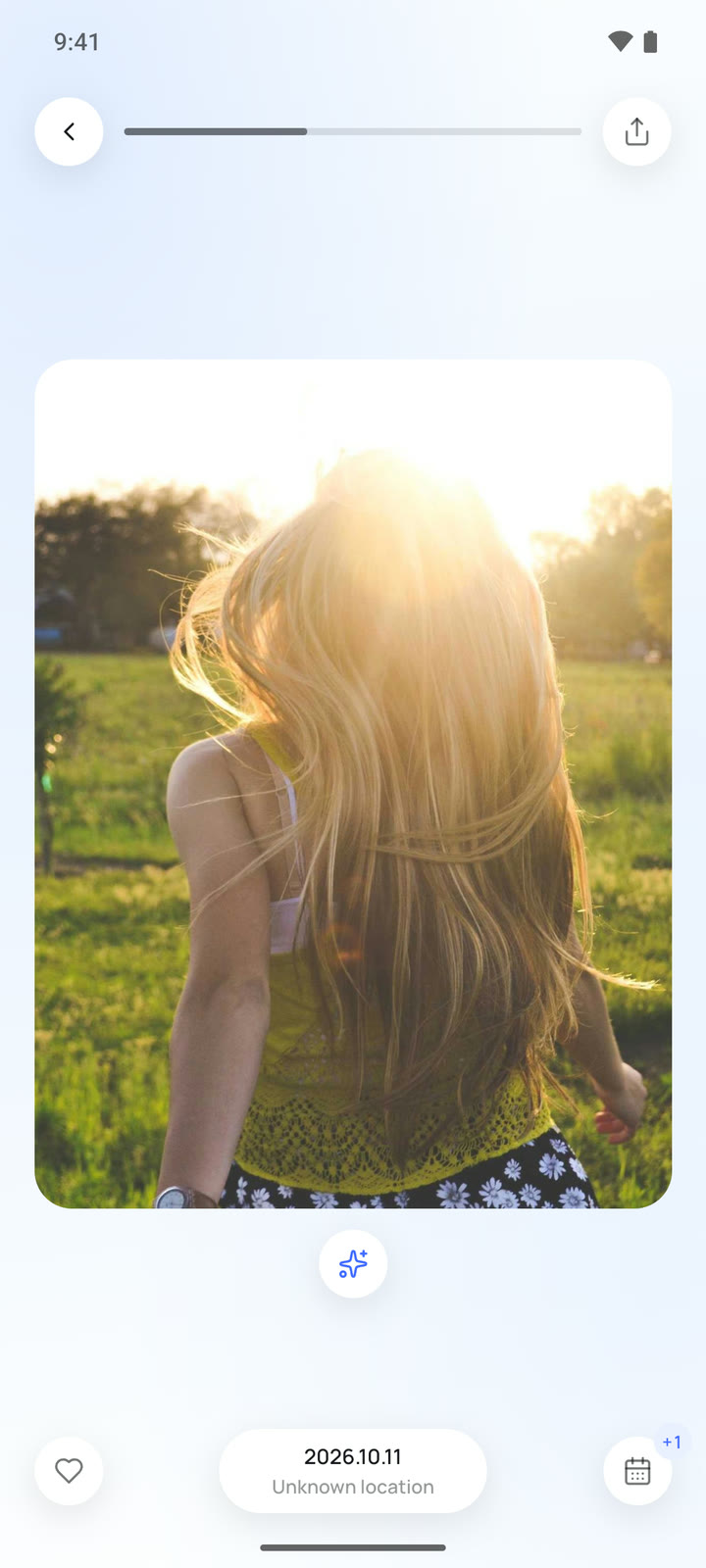
Real Android UI · demo photos
How it works
One box,
three steps
Thousands of photos feel like a chore. Ten photos feel like two minutes over coffee.
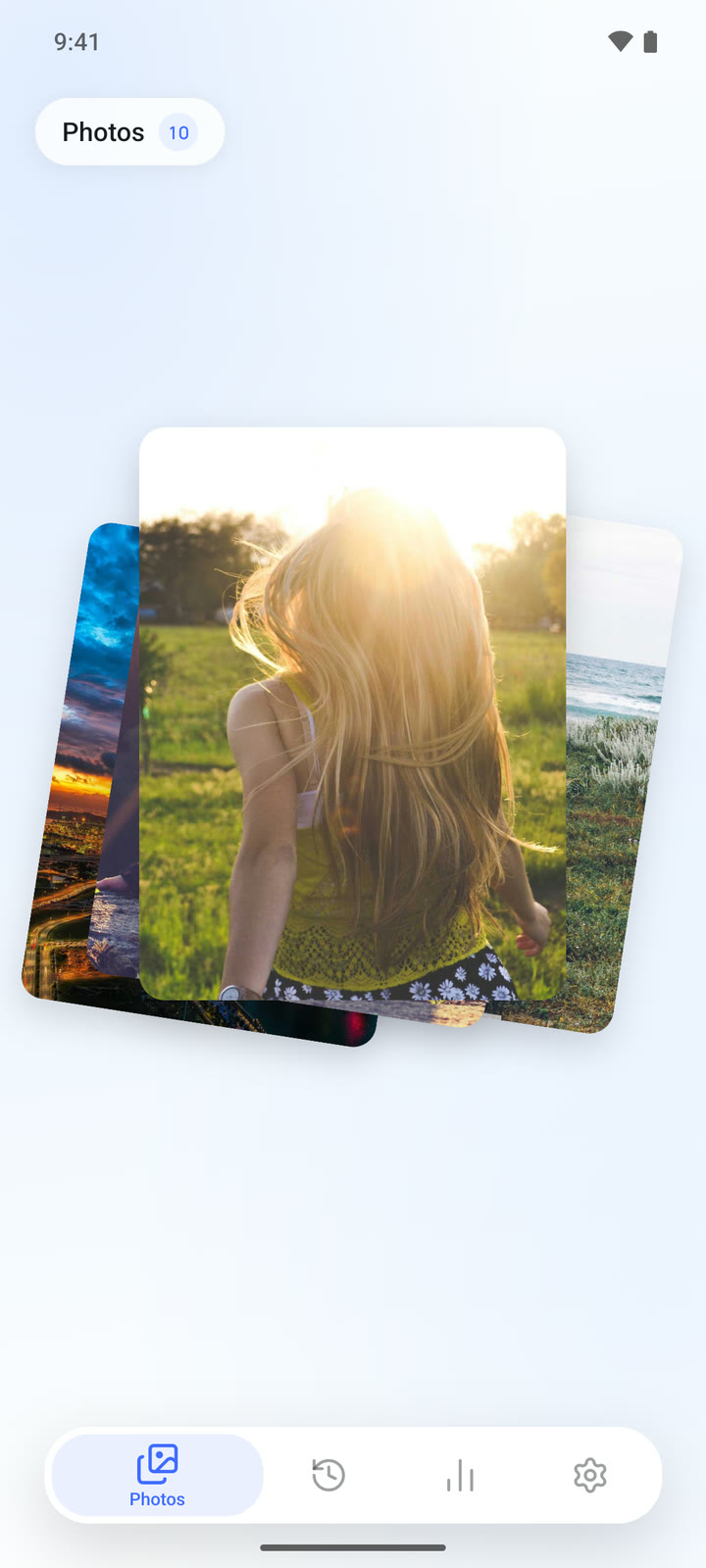 01
Open a little box
Get 10 photos from a random stretch of time, or start from your newest and work backward.
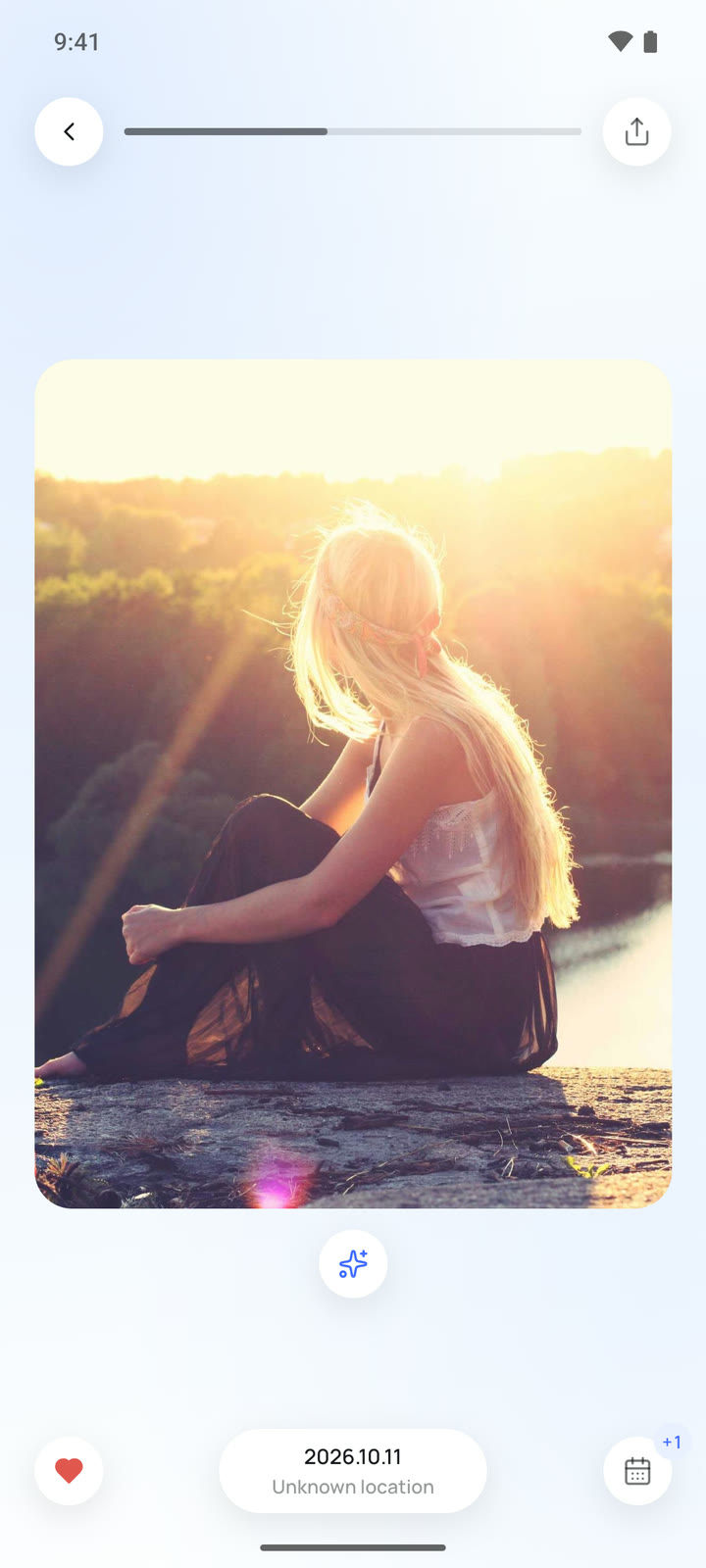 02
Go one by one
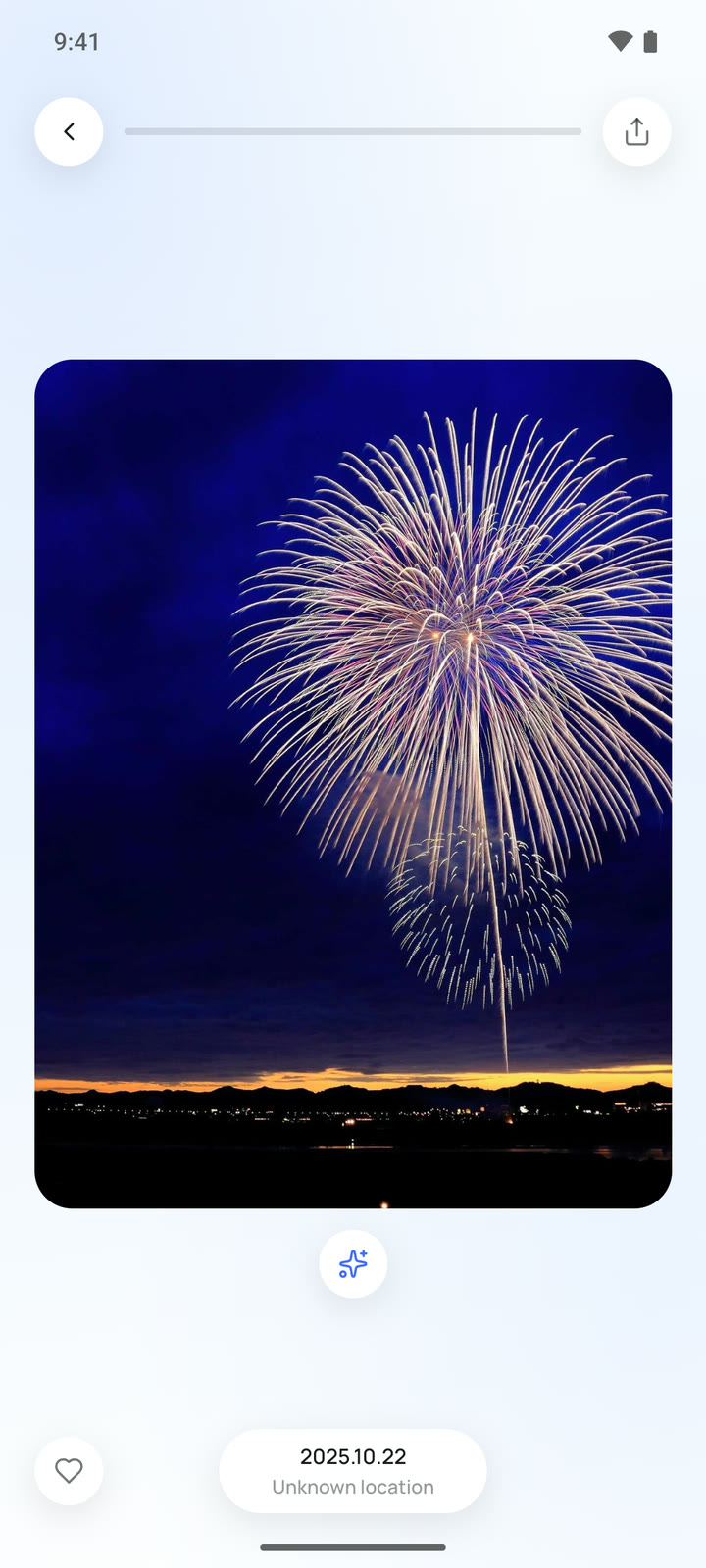
Swipe left and right to browse. Swipe up to set a photo aside, swipe down to favorite it.
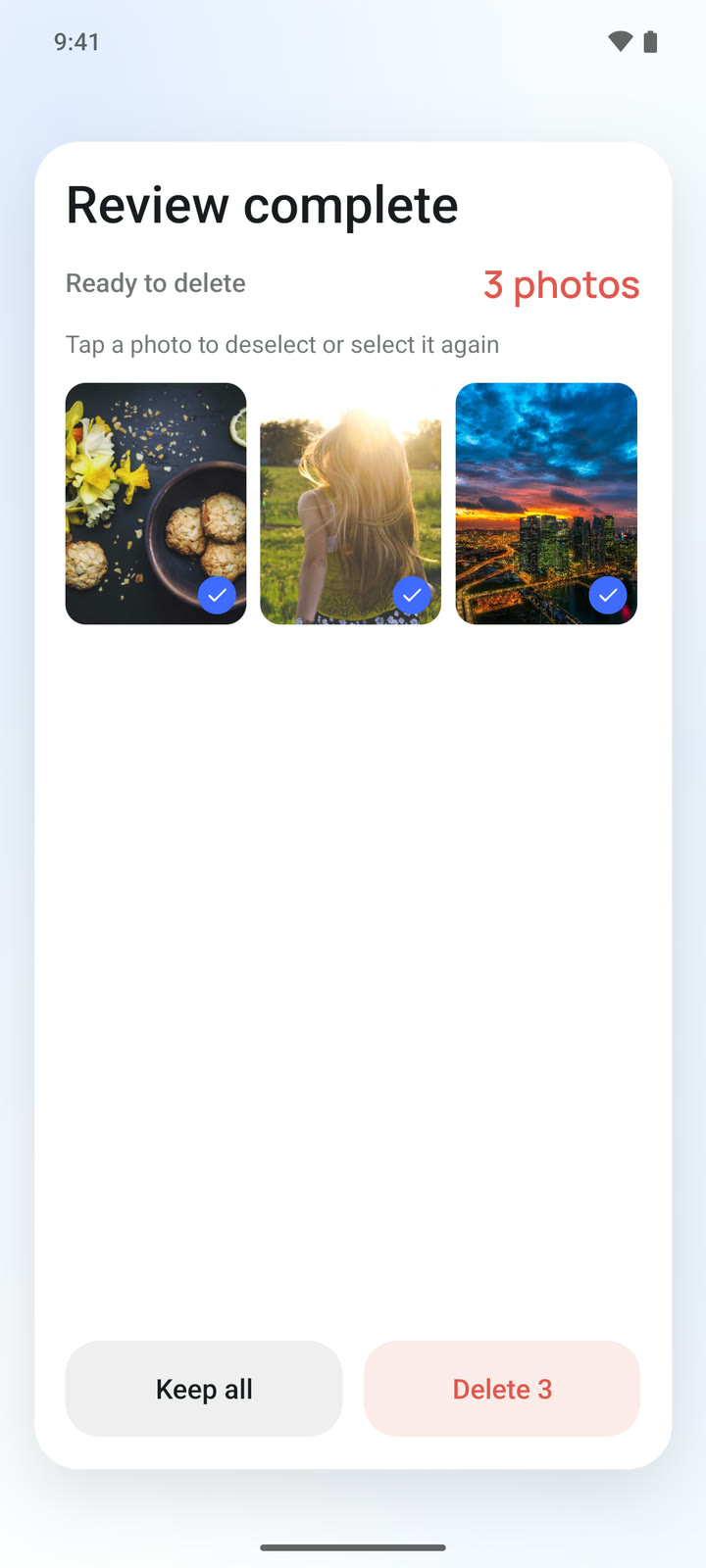 03
Confirm at the end
Review the whole box at once and tap any photo to keep it. Nothing is deleted until you confirm.
Swiping up only marks.A slip of the thumb never deletes a photo.
Swipe down to favorite.It goes into your phone’s own photo favorites.
Gestures
Four gestures.
That’s the whole app.
No menus to learn. The recording is the real app: browse, favorite with a swipe down, mark with a swipe up.
Left and right to browse
Next photo or the one before. It only moves your place; no photo changes.
Up to mark for deletion
The photo joins the to-delete pile with a red glow at the top. You can change your mind until you confirm.
Down to favorite
A blue glow at the bottom, the heart turns red, and the photo lands in your system favorites.
Pinch for two columns
Pinch in to see the whole box in a grid. Tap any photo to jump back to it.
On this day
What did you shoot
on this day last year?
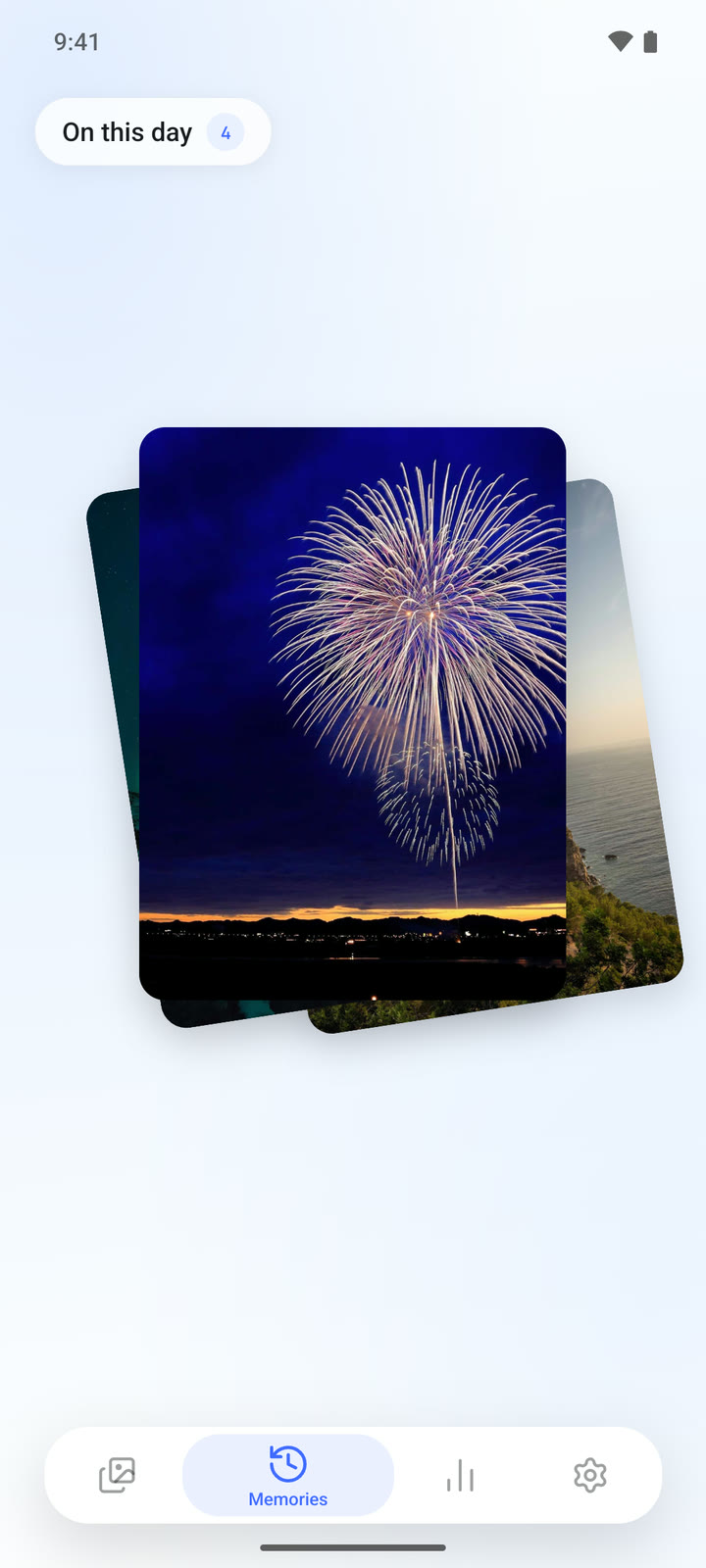
“On this day” gathers the photos you took on today’s date in past years into a box of their own. Somewhere in there might be a shot you forgot and still love.
Memories run alongside your daily box and don’t use up your daily quota.
Free shows the first 3 clearly. Premium shows them all.
Real Android UI · demo photos
A few promises
Small, quiet, and yours
FAQ
The questions
people ask first
Something else on your mind? Write to the developer.
[email protected]Does swiping up delete a photo?
No. Swiping up only marks it. When you finish a box you get a review screen where you can tap photos to keep them, and only after you confirm does Unbox ask the system to delete.
Are my photos uploaded anywhere?
Sorting happens entirely on your phone, with no account and no cloud. Only if you choose to use AI ratings are the 1–2 photos you pick sent to the AI provider you configured.
Do I need an account or internet?
No account. Sorting photos works offline; the network is used only for AI ratings and checking for a new version.
What’s the difference between Free and Premium?
Free gives you one box of 10 photos a day and the first 3 memories. Premium removes the daily limit, lets you choose 10–50 photos per box, shows every memory, and can load all of a day’s photos in one tap. It’s a one-time purchase, not a subscription.
What do I need for swipe-down favorites?
Works on iPhone and iPad; Android needs version 11 or later, HarmonyOS needs API 26 or later. Favorites are written to your phone’s system photo favorites, not just kept inside Unbox.
How do AI ratings work?
Add your AI service, model and API key in Settings. Then tap the sparkle button under a photo, or long-press to pick 1–2 photos in the grid, to flip the rating card.
Which phones does it run on?
iPhone and iPad (iOS 17 or later) on the App Store, Android on Google Play, and Huawei HarmonyOS on AppGallery. All free.

Open today’s box.
A few minutes a day, and your camera roll slowly sorts itself out.
Made by Flouuy, an indie developer. Ideas or problems? Write any time: [email protected]